TL;DR: A file upload vulnerability (unrestricted file upload, CWE-434) exists when the server stores or processes an uploaded file without checking what it really is, how big it is, who sent it, what it is called and how it will be served back. Checks in the browser do not count, because anyone can send the request without the browser. Check on the server: size, type by the file's own bytes, a name your app generates, storage outside the web root, and a fixed Content-Type with X-Content-Type-Options: nosniff when you serve it.
This article is for founders and developers who have an upload form in their app (avatars, attachments, invoices, imports) and want to know what to check before someone else does. It shows what two upload endpoints on CyberGym did with harmless test files, why one held and the other did not, and a checklist you can work through on your own endpoint. Test only apps you own or have written permission to test.
What is a file upload vulnerability?
It is any upload path where the server trusts something about the file that the sender controls. MITRE files the class as CWE-434, Unrestricted Upload of File with Dangerous Type: "the product allows the upload or transfer of dangerous file types that are automatically processed within its environment". It ranks 12th in the 2025 CWE Top 25, down from 10th the year before.
"Dangerous" depends on what happens to the file after it lands. The OWASP page on unrestricted file upload lists the outcomes, and they come in a few families:
- The server runs it. A script saved inside a directory the web server executes (a
.phpfile under an Apache document root, for example) becomes code on your server. This is the worst case and the one most write-ups stop at. - The browser runs it. An HTML or SVG file served from your domain with a type the browser renders runs its scripts in your origin. That is stored XSS delivered as a file.
- A parser chokes on it. Image, archive, XML and office parsers process the file before your code looks at it. An XML or SVG upload can carry an XXE payload; an archive can hold entries named
../../somethingthat write outside the target folder. - It overwrites or fills something. A user-chosen name can replace an existing file. No size limit lets one request fill a disk or a memory buffer.
Most real upload bugs are not one missing check but a check in the wrong place: in the browser, on the extension only, or on the Content-Type header the client chose.
How does an upload get past the checks?
It gets past them when the checks run somewhere the sender controls. An upload is one HTTP request, multipart/form-data, and every part of it is written by the client:
POST /upload HTTP/1.1
Host: your-app.example
Content-Type: multipart/form-data; boundary=----x

------x
Content-Disposition: form-data; name="file"; filename="avatar.png"
Content-Type: image/png

(the file's bytes)
------x--
The filename and the part's Content-Type are whatever the sender typed. The form's accept="image/*" attribute and a JavaScript size check only shape what a normal user picks in the dialog; curl -F skips them. The OWASP File Upload Cheat Sheet puts it plainly: the Content-Type "is provided by the user, and as such cannot be trusted".
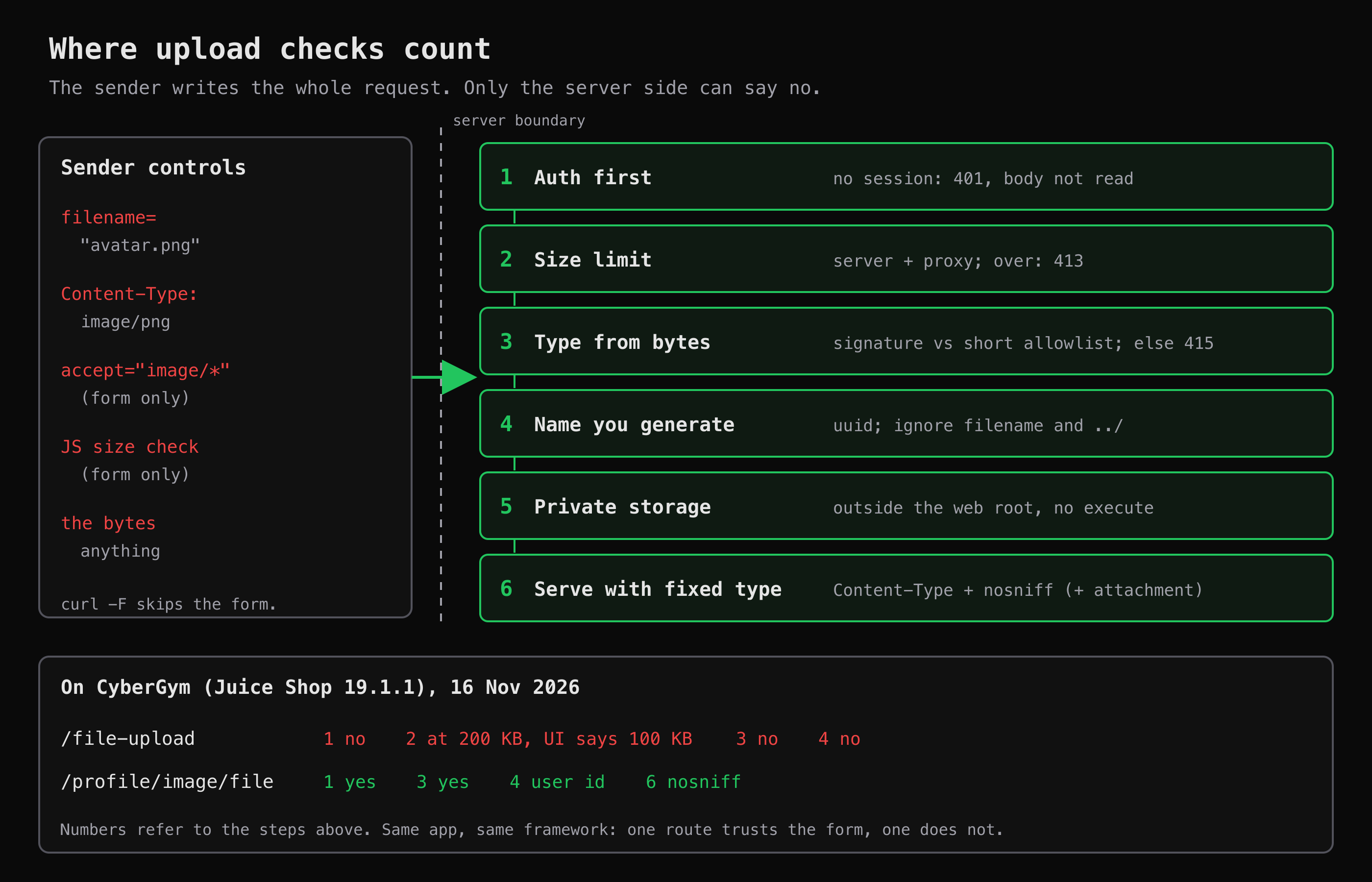
Everything left of the server boundary is written by the sender. The checks that count are on the right.
What did the upload forms on CyberGym accept?
On 16 November 2026 we sent harmless files (a short text file, padded PDFs, a 1×1 PNG and a tiny GIF) to two upload endpoints on CyberGym, our legal practice target, which runs OWASP Juice Shop 19.1.1. We read the matching route code from the Juice Shop v19.1.1 source to see why each answer came back the way it did. Nothing executable, no XML, YAML or archives were sent.
The complaint form: the checks live in the browser
The Complaint page has an attachment field. Its Angular component allows only PDF, XML, ZIP and YAML MIME types and a maxFileSize of 100,000 bytes (complaint.component.ts). We posted straight to the endpoint the form calls, with no session cookie and no token:
printf 'hgo-126 upload test\n' > notes.txt
python3 -c "open('big.pdf','wb').write(b'%PDF-1.4\n'+b'A'*150000)"
python3 -c "open('huge.pdf','wb').write(b'%PDF-1.4\n'+b'A'*250000)"

for f in notes.txt big.pdf huge.pdf; do
  curl -s -o /dev/null -w "$f %{http_code}\n" -F "file=@$f" https://cybergym.hackergpt.app/file-upload
done
notes.txt 204
big.pdf 204
huge.pdf 500
Three findings in three requests:
- No authentication. The route in server.ts is
app.post('/file-upload', uploadToMemory.single('file'), ...)with noisAuthorized()in front of it, so an anonymous request got a204. - The type check never rejects. A
.txtfile was accepted. In routes/fileUpload.ts,checkFileTypereads the extension fromoriginalnameonly to mark the Upload Type challenge as solved, then callsnext()whatever it found. - The real size limit is twice the advertised one. 150,009 bytes passed. The server's limit is multer's
limits: { fileSize: 200000 }, so 250,009 bytes failed, but as a500HTML page with a full stack trace:
500 MulterError: File too large
    at abortWithCode (/home/admin/juice-shop/node_modules/multer/lib/make-middleware.js:73:22)
    at FileStream.<anonymous> (/home/admin/juice-shop/node_modules/multer/lib/make-middleware.js:136:11)
A rejected upload should be a 413 with a short message. A stack trace that names the install path and the library is a security misconfiguration of its own. Afterwards the Score Board showed Upload Size ("Upload a file larger than 100 kB") and Upload Type ("Upload a file that has no .pdf or .zip extension") as solved; CyberGym is shared, so someone may have solved them before us.
Reading further in the same file shows why we stopped there. .zip uploads are unpacked into uploads/complaints/ using each entry's own path, guarded only by a check that the resolved path contains the app directory. .xml files go to libxml with noent: true, which resolves external entities. Those are the next two challenges on this endpoint, and the defence for both is in the checklist below.
The profile picture: the checks live on the server
The profile image upload (/profile/image/file) is written differently, and it held. routes/profileImageFileUpload.ts reads the file's first bytes with the file-type library, refuses anything that is not image/*, and saves the file as <user id>.<detected extension>, ignoring the name the client sent. We tried it with a throwaway account of our own:
| What we sent | Name and type we claimed | Response |
|---|---|---|
| Text file | avatar.png, image/png |
500 Illegal file type |
| PDF bytes | avatar.png, image/png |
415 "does not accept this file type: application/pdf" |
| Real PNG | avatar.html, text/html |
302, stored as 34.png |
| Real GIF | avatar.png, image/png |
302, stored as 34.gif |
The PNG we called avatar.html came back as an image, not a page:
curl -s -o /dev/null -D - https://cybergym.hackergpt.app/assets/public/images/uploads/34.png \
  | grep -i -E "^(HTTP|content-type|x-content-type)"
HTTP/1.1 200 OK
Content-Type: image/png
X-Content-Type-Options: nosniff
A request for 34.html returned 200 too, but it was the app's 75,294-byte HTML shell, the same page any missing path gets. A single-page app answers every unknown URL that way, so judge an upload by the body you get back, not the status code.
The lesson is in the contrast. The same app, with the same framework, has one upload that trusts the browser and one that ignores everything the client said about the file. The second one decides the type from the bytes, names the file itself and serves it with a fixed type, and the claims we made in the request changed nothing. It is not perfect either: the 500 for a text file should be a 415, and a check for the image/ prefix would also pass image/svg+xml, a format that can carry script, if the detection library reported it. A real app should list the exact types it wants rather than a prefix.
What should I check on my own upload form?
Check it from the server's side: send the request without the browser and see what the server does with each part. Work through these on every upload endpoint, against your own staging copy:
- Who can upload? Send the request with no session. Upload endpoints that accept anonymous files are rarely intended. The cheat sheet's line is "only allow authorized users to upload files".
- What is the real size limit? Send a file just over the limit your UI shows, then one far over it. The server should refuse with
413, before reading the whole body into memory. In Node, multer'sfileSizelimit defaults toInfinity; set it, and set the reverse proxy's body limit too. - Is the type decided from the bytes? Send a text file named
.pngwithContent-Type: image/png. It should be refused. Allow a short list of exact types the feature needs (for a CV form, PDF and DOCX), check the file signature, and treat the extension andContent-Typeonly as a first filter. - Who chooses the file name? Send a name with
../, a double extension (report.pdf.html) and a very long name. Your app should store the file under a name it generates, such as a UUID, and keep the original name in the database if users need to see it. The cheat sheet lists the classic extension tricks (double extensions, null bytes, alternative extensions, NTFS streams); a generated name sidesteps all of them. - Where do the files live? Uploaded files should not sit inside a directory the web server executes or serves as static content. Use a separate bucket or a path outside the web root, and serve files through a handler that maps an id to a file. If you use a storage service, check that the bucket is not public by accident; the Supabase checklist shows how for Supabase Storage.
- How are they served back? Fetch an upload and read the headers. Set
Content-Typefrom your own allowlist, addX-Content-Type-Options: nosniffso browsers do not guess, and useContent-Disposition: attachmentfor anything that is not meant to display inline. Serving user files from a separate domain keeps any HTML or SVG that slips through out of your app's origin. - What parses the file? List every library that opens an upload: image resizers, PDF and office converters, archive extractors, XML parsers. Archive extraction should reject entries whose resolved path is outside the target folder, and XML parsing should refuse DTDs, as in the XXE example.
- What do errors reveal? Trigger each rejection and read the response. A short message and the right status code (
413,415) are enough; stack traces and file paths are findings.
For files from the public, the cheat sheet also suggests scanning them with antivirus or a sandbox, and running document formats through content disarm and reconstruction (CDR). These reduce risk; none of them replaces the checks above.
You also need to know where all the upload endpoints are. Apps grow them in places nobody remembers: an import in the admin panel, an old API version, a support form. AppMap crawls your own app and lists every API endpoint with its auth requirement, which is a quick way to find the ones that take files; the API security testing checklist covers what to test on each of them beyond uploads.
How do I fix an upload endpoint that fails these checks?
Move every check to the server and stop reading what the client says about the file. In practice that is a short change for most apps: set a size limit in the upload middleware and the proxy, check authentication before the body is parsed, detect the type from the bytes against a short allowlist, generate the name, write to private storage, and serve through a handler that sets the type and nosniff. Juice Shop's own profile picture route, a few dozen lines, does most of that. If the feature needs user-controlled formats such as SVG or HTML, serve them from a separate domain and as attachments.
Then re-run the same requests that found the problem and keep them as a regression test. A fix you cannot reproduce the original request against is a fix you have not checked.
Key takeaways
- Send your upload request with
curlinstead of the browser; whatever the server accepts that way is what an attacker can send. - Decide the file type from its bytes against a short allowlist, and ignore the client's file name and
Content-Typefor anything that matters. - Set a size limit on the server and the proxy, and reject with
413, not a stack trace. - Store uploads outside the web root under names you generate, and serve them with a fixed
Content-TypeandX-Content-Type-Options: nosniff. - Find every upload endpoint in your app, including old and admin ones, before you decide your uploads are handled.
FAQ
What is an unrestricted file upload vulnerability?
It is an upload feature where the server accepts a file without checking what it is, how large it is, who sent it or how it will be stored and served. MITRE tracks it as CWE-434. Depending on what happens to the file next, it can lead to code running on the server, scripts running in users' browsers, parser attacks or a full disk.
Is checking the file extension enough?
No. The extension is part of the file name, which the sender chooses, and it can be doubled or swapped. Check the file's signature (its first bytes) against a short allowlist on the server, generate the stored name yourself, and serve the file with a type you set.
Can I trust the Content-Type header of an uploaded file?
No. The browser fills it in from the file name, and any other client can write whatever it likes. OWASP's File Upload Cheat Sheet treats it as a quick filter for honest mistakes, not as a security check.
Can an image upload be dangerous?
Yes, in some cases. SVG is an image format that can contain script, so an SVG served from your domain as image/svg+xml can run in your origin. Image libraries also parse every upload, which makes them part of the attack surface. Allow only the formats you need and serve user images with nosniff, ideally from a separate domain.
How do I test my file upload safely?
Use a staging copy of your own app or a practice target such as CyberGym, and send harmless files: a text file with an image name, a file just over the size limit, a name with ../ in it. Watch the status code, the stored name and the headers when you fetch it back. You do not need a malicious file to see whether a check is missing.
Sources
- CWE-434: Unrestricted Upload of File with Dangerous Type, MITRE
- 2025 CWE Top 25 Most Dangerous Software Weaknesses, MITRE
- Unrestricted File Upload, OWASP
- File Upload Cheat Sheet, OWASP Cheat Sheet Series
- OWASP Juice Shop v19.1.1 source:
server.ts,routes/fileUpload.ts,routes/profileImageFileUpload.ts,frontend/src/app/complaint/complaint.component.ts - multer README: limits
- X-Content-Type-Options and Content-Disposition, MDN
Want to find every endpoint in your own app that takes a file? Map it at hackergpt.app, or practise on CyberGym.