TL;DR: Backup files such as config.php.bak, package.json.old or db.sql~ left in a web-served folder can be downloaded by anyone who finds the name, and they often hold source code, dependencies, credentials or customer data. A filter that only allows certain extensions is a weak guard, because a crafted name can pass the check and still open the backup. Find them by listing the non-asset files in your web root and requesting common backup names on your own site, then move backups out of the web root entirely.
This is for learners studying web vulnerability classes and for site owners who deploy by copying files. You will see why backups end up on servers, why the file-type check in CyberGym's "Forgotten Developer Backup" challenge did not protect the file, and how to check your own server. Test only systems you own or have written permission to test; CyberGym, HackerGPT's hosted OWASP Juice Shop, is a legal place to practise, and our guide to practising hacking legally lists others.
The video is our run of the challenge, manual first, then with HackerGPT.
What is an exposed backup file vulnerability?
It is a copy of a file, made for safety or during an edit, that stays somewhere the web server will hand it out. MITRE calls it CWE-530: Exposure of Backup File to an Unauthorized Control Sphere. In the OWASP Top 10:2025 the related weaknesses, CWE-538 and CWE-552 (files accessible to external parties), sit under A01 Broken Access Control. The OWASP Web Security Testing Guide has a test case for it, WSTG-CONF-04.
Backups are dangerous for two reasons. They often contain what the live file protects, such as server-side source or settings, and they change how the server treats the file: config.php is executed, while config.php.bak is usually served as plain text.
A forgotten backup is one of a family of deployment mistakes. The others, such as verbose error pages, admin endpoints that answer without a login and missing security headers, are in security misconfiguration examples, checked on the same practice target.
Why do backups end up on web servers?
Because the web root is where people work. In our experience the usual sources are:
- Editors and manual edits:
file~,.swpfiles, or a hand-madefile.bakbefore a risky change on the server. - Deploys by copy: a folder synced wholesale to the server, including old copies and archives (
site.zip,backup.tar.gz). - Database dumps written to a convenient folder for a migration and never removed.
- Public folders used as file drops, where a backup sits next to the documents that were meant to be shared.
How did the Forgotten Developer Backup challenge work?
The tester built on the previous challenge, where a public folder on CyberGym turned out to list its files. In that listing the tester spotted a file whose .bak suffix marked it as a backup of a JavaScript project's dependency file. Opening it returned 403 with a message that only .md and .pdf files were allowed.
The tester treated the error as information, not as a dead end: the server had just described its own guard, an extension allow-list. The challenge hint pointed the same way, saying to trick a security mechanism into believing the file had a valid type. The first attempt to make the name end in an allowed extension while still pointing at the backup was rejected with 400 Bad Request. Rather than guessing more strings, the tester used Burp Suite's Decoder to look at how the value was being encoded, adjusted the encoding, and the second request returned the file. The same method later opened another blocked backup in the folder.
The weakness is visible in Juice Shop's own source, which is open: its file server route checks that the requested name ends in .md or .pdf, and only after that check cuts the name at the text %00, its stand-in for a null byte, so the check and the file read see two different names. That order is CWE-180: Validate Before Canonicalize, and the null-byte trick is CWE-158. Juice Shop performs that truncation itself, on purpose, so learners can see the pattern; in a real app the same mistake appears whenever a check runs before the last decoding or normalising step. The exact request is in the companion guide's solutions, and HackerGPT's run of the same folder is in the CTF Mode field guide; we do not repeat either here.
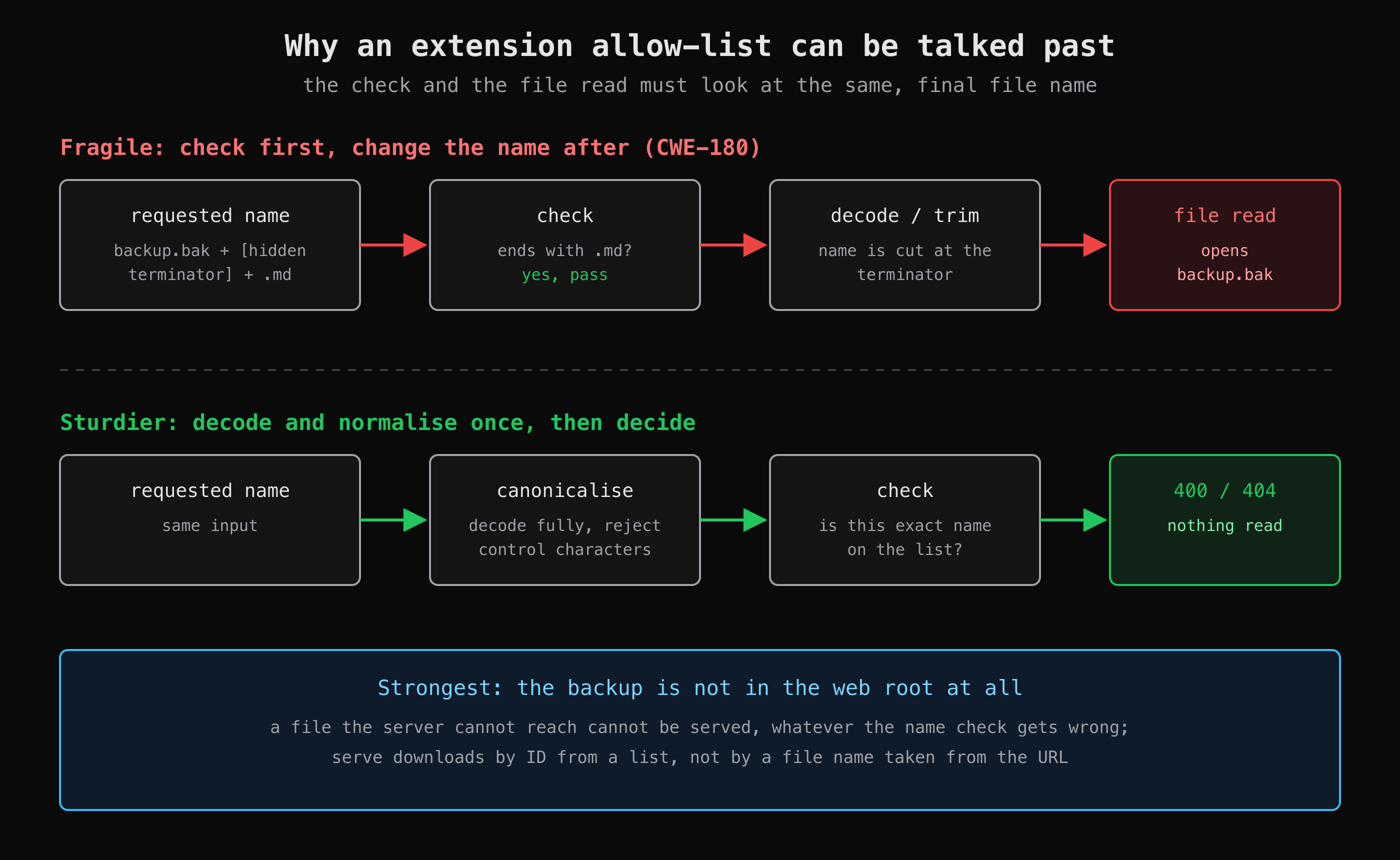 The check and the file read must agree on the file name. The sturdiest fix is a backup the web server cannot reach at all.
What we saw on CyberGym
We only looked at status codes and content types, not at file contents. An allowed file and three blocked ones, on 2 November 2026:
for p in legal.md package.json.bak coupons_2013.md.bak encrypt.pyc; do
  printf '%-22s ' "$p"
  curl -s -o /dev/null -w '%{http_code} %{content_type}\n' "https://cybergym.hackergpt.app/ftp/$p"
done
# legal.md               200 text/markdown; charset=UTF-8
# package.json.bak       403 text/html; charset=utf-8
# coupons_2013.md.bak    403 text/html; charset=utf-8
# encrypt.pyc            403 text/html; charset=utf-8
The body of each 403 page begins Error: Only .md and .pdf files are allowed!. Two things to notice for your own server: the error message tells an outsider exactly what the guard checks, and the backups are still there, protected only by that one check.
How do I find backup files on my own server?
List what is actually in your web root, then request the backup names a careless deploy would leave, against your own domain or localhost.
1. On the server, list backup-like files in the web root. Replace the path with your document root or deploy folder:
find /var/www/your-app -type f \( \
  -name '*.bak' -o -name '*.old' -o -name '*.orig' -o -name '*.backup' -o -name '*~' \
  -o -name '*.swp' -o -name '*.sql' -o -name '*.zip' -o -name '*.tar.gz' -o -name '*.tgz' \
  -o -name '*.7z' -o -name '.env*' \) -print
Anything it prints is either removed or justified.
2. From outside, request backup names of your real files. Take files you know exist and try the common suffixes. A 200 with a non-HTML content type is a finding; a 403 means the file may exist behind a check, which is still worth fixing:
base=https://your-app.example
for f in index.php config.php package.json web.config .env; do
  for s in .bak .old .orig '~' .save .swp; do
    code=$(curl -s -o /dev/null -w '%{http_code} %{content_type}' "$base/$f$s")
    case "$code" in 404*) ;; *) echo "$f$s $code" ;; esac
  done
done
Single-page apps often answer every unknown path with 200 text/html (their index page), so judge by content type, not status alone.
3. Check folder paths too. If a folder lists its files, the backup names are already public, so request each folder your site serves from as well. The broader read-only checks are in how to pentest your own website.
4. Test your own file-type guard. If your app serves files by name, confirm that the name it checks is the name it opens: decode the request once, reject control characters and path separators, then compare. Do this on a staging copy.
How do I fix it and prevent it?
Remove the backups from anywhere the web server can reach, then stop serving files by user-supplied names.
- Delete or move backups out of the web root. Keep them in storage that has no public URL. A file the server cannot reach cannot be served, whatever a filter gets wrong.
- Serve downloads by ID, not by file name. Map an ID from the URL to a file from a list you control, and check that the user may have it. That removes both the extension trick and path tricks.
- If you must filter by name, canonicalise first. Decode once, reject null bytes and other control characters, then allow-list exact names, not suffixes.
- Deny backup patterns at the server. For example, an nginx
location ~* \.(bak|old|orig|swp|sql)$ { deny all; }block as a second layer, not the only one. - Deploy from a build, not a working folder. CI that produces a clean artifact and fails when it contains backup or dump files keeps them from shipping. Return generic error messages that do not describe your guard.
If a backup was reachable, treat its contents as seen: rotate any credentials in it and, if it held personal data, follow your breach-handling process. A .git folder or .env file in the web root leaks the same way; check for an exposed .git folder and .env file with the same body-not-status test. For how access checks fail on API objects rather than files, see the IDOR example.
Key takeaways
- Run a
findfor.bak,.old,.sql, archives and.envfiles in your web root before every deploy. - A
403on a backup means it is still on the server; remove it rather than relying on the check. - Validate a file name only after it is fully decoded and normalised, and allow-list exact names.
- Serve downloads by ID from a list you control instead of by a name taken from the URL.
- Rotate anything a reachable backup contained.
Practise the pattern legally on CyberGym, or use CTF Mode to work through your own site and get each step explained.
FAQ
Why are .bak files dangerous on a web server?
The server usually does not know how to run them, so it sends them as plain files. A config.php.bak then reveals source and settings that config.php would have executed privately, and backups of data files can hold customer records.
Is an extension allow-list enough to protect files?
No. It checks one representation of the name, and if any later step decodes, trims or normalises the name differently, the file read can open something the check never approved. Remove sensitive files from the served folder and serve downloads by ID instead.
What is a null byte attack on file names?
It inserts a null character into a file name so that a check sees one name, for example ending in an allowed extension, while the lower-level file call stops reading at the null and opens a different file. It is catalogued as CWE-158, and it works only where a check runs before the name is cleaned.
How do I find backup files on my website?
On the server, use find in the web root for backup and archive extensions. From outside, request the names of your real files with suffixes such as .bak, .old and ~, and check the status code and content type of each response.
Sources
- CWE-530: Exposure of Backup File to an Unauthorized Control Sphere, MITRE
- CWE-538: Insertion of Sensitive Information into Externally-Accessible File or Directory, MITRE
- CWE-180: Incorrect Behavior Order: Validate Before Canonicalize, MITRE
- CWE-158: Improper Neutralization of Null Byte or NUL Character, MITRE
- A01:2025 Broken Access Control, OWASP Top 10:2025
- WSTG-CONF-04: Review Old Backup and Unreferenced Files for Sensitive Information, OWASP
- routes/fileServer.ts, OWASP Juice Shop source
- OWASP Juice Shop companion guide: Sensitive Data Exposure and challenge solutions