TL;DR: An exposed directory listing is a web folder that answers a request for its own URL with an index of every file in it, so a document nobody linked is still one click away. Check your server by requesting each folder path your site uses and looking for an "Index of" or "listing directory" page, then turn listing off (autoindex off on nginx, Options -Indexes on Apache) and move files that are not meant for the public out of the web root.
This article is for site owners and for learners working through web practice targets. It explains why directory listings leak internal files, shows the weakness on CyberGym, HackerGPT's hosted OWASP Juice Shop, and gives you commands to check your own server. Test only sites you own or have written permission to test; CyberGym is a legal practice target built for exactly this.
The video below is our run of CyberGym's "Find Confidential Document" challenge: first a manual walk through the app, then HackerGPT doing the same reconnaissance.
What is an exposed directory listing?
An exposed directory listing is a web server returning a generated page that lists the files in a folder, because the folder has no index page and listing is switched on. MITRE catalogues it as CWE-548: Exposure of Information Through Directory Listing, and the OWASP Top 10:2025 maps it, together with CWE-538 (sensitive information in an externally accessible file), to A01 Broken Access Control.
The listing itself is rarely the damage. The damage is what it points to: drafts, exports, backups and internal documents that someone copied into a public folder because it was the convenient place to share them. Without a listing, an outsider would have to guess those names. With one, the server publishes them.
Why does it happen in real apps?
It happens because listing is one configuration line away, and because public folders collect files over time. In our experience the usual paths are:
- A server or framework setting turned on for convenience. nginx's
autoindexis off by default, but a singleautoindex on;enables it for a location. Apache serves listings throughmod_autoindexwherever theOptionsdirective includesIndexes. In Node.js apps, Express middleware such asserve-indexdoes the same for a route. - A folder used as a file drop. Downloads, uploads and "shared" folders start with one intended file and end up holding everything someone needed to pass around.
robots.txttreated as protection. ADisallowline asks crawlers not to visit a path. It does not stop anyone else, and it advertises the path to every reader of the file.
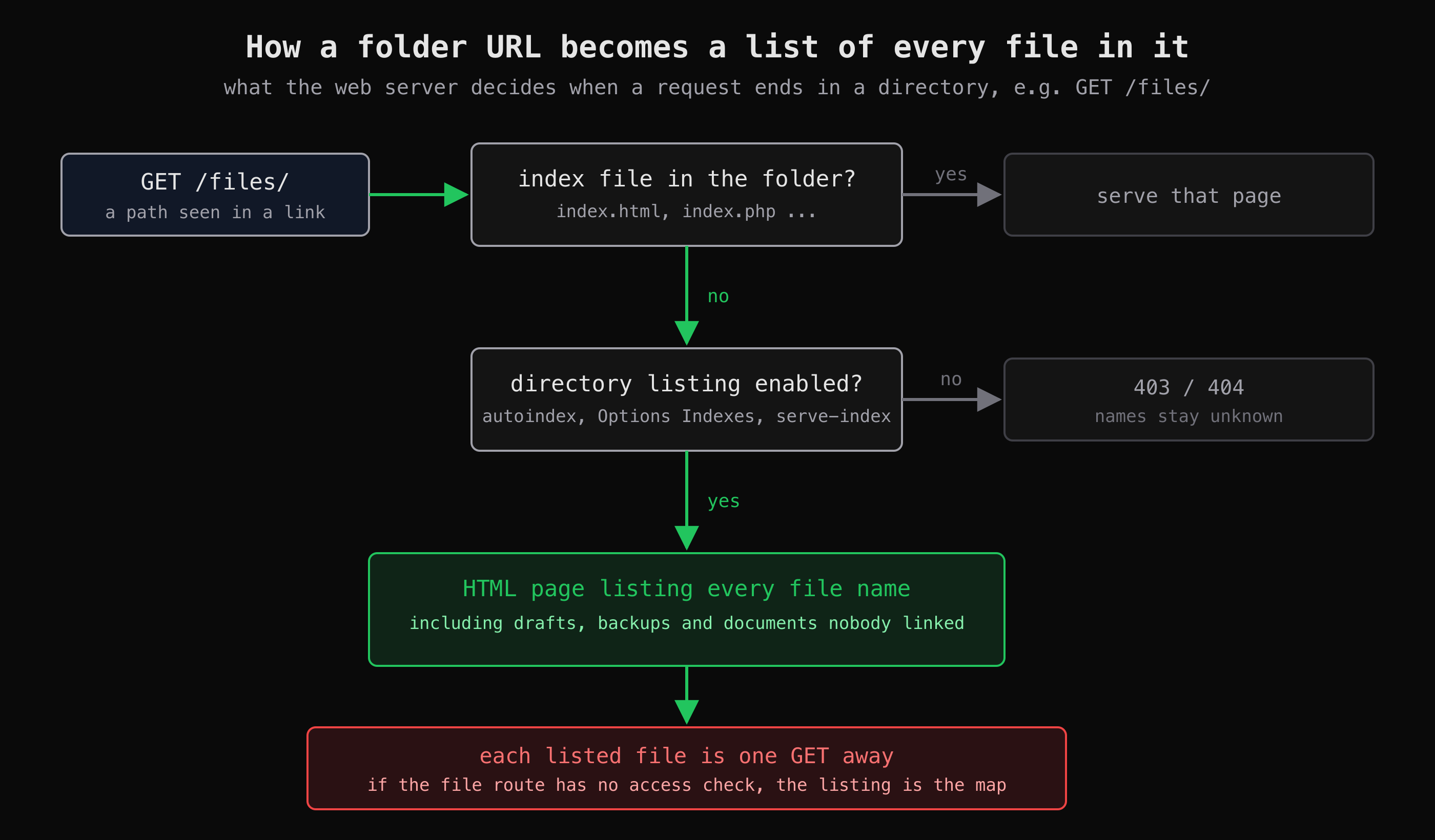 The two server decisions behind an exposed listing. Turn off the second one and an unlinked file name stays unknown.
What does the Juice Shop Confidential Document challenge teach?
It teaches that reconnaissance often beats payloads: the challenge is solved by following a link the application already shows you. In the video, the tester reads the challenge hint ("analyze and tamper with links in the application that deliver a file directly"), browses the shop without sending anything unusual, and notices that a terms-of-use link on the About Us page points into a folder rather than at a page. Requesting the folder itself, instead of the one file, returns a listing: the first try lands in its quarantine subfolder, and one level up is /ftp/ with every file in it. Among the file names is acquisitions.md, which reads like internal business material, and it opens without any login: "This document is confidential! Do not distribute!"
The second half of the video is HackerGPT's run in CTF Mode, given only the target and the challenge name. It spotted the same footer link to /ftp/legal.md, requested /ftp/ and got 200 OK with the title "listing directory /ftp/", then fetched /ftp/acquisitions.md without authentication. Its summary is candid that it picked that file from the well-known Juice Shop layout rather than by reading the listing. It confirmed the solve through GET /api/Challenges/?name=Confidential Document, and its App Map recorded each /ftp/ file it visited as an unauthenticated page. The CTF Mode field guide covers the workspace it ran in. If you want the exact solution for the challenge, the OWASP Juice Shop companion guide has the hints and its appendix has the solutions.
What we saw on CyberGym
We repeated the harmless part, looking only at headers and file names. CyberGym's robots.txt names the folder:
curl -s https://cybergym.hackergpt.app/robots.txt
# User-agent: *
# Disallow: /ftp
A header request to that folder returns an ordinary HTML page:
curl -sI https://cybergym.hackergpt.app/ftp
# HTTP/1.1 200 OK
# Server: nginx
# Content-Type: text/html; charset=utf-8
# Content-Length: 15779
# Access-Control-Allow-Origin: *
# X-Content-Type-Options: nosniff
# X-Frame-Options: SAMEORIGIN
Its body is the listing. Filtering the file names for the ones that should never sit in a public folder gave six hits on 2 November 2026:
curl -s https://cybergym.hackergpt.app/ftp/ \
  | grep -oE 'href="[^"]+"' | sed 's/href="//; s/"$//' \
  | grep -E '\.(bak|old|orig|swp|zip|tar|gz|sql|kdbx|pyc|yml|env)$|~$'
# coupons_2013.md.bak
# encrypt.pyc
# incident-support.kdbx
# package-lock.json.bak
# package.json.bak
# suspicious_errors.yml
A password-manager database, compiled code and several backups, all named publicly. CyberGym is a shared practice instance, so the full listing also holds files other players have uploaded; the planted ones are what matter here. Nothing in this step needed an exploit, only a request to a URL the app had already revealed.
How do I check my own server for directory listing?
Request every folder path your site uses and see whether any of them returns a generated index instead of a page or an error. Run these against your own domain or localhost; replace your-app.example with it.
1. Collect the folder paths. Look at the URLs your pages actually load (your browser's network panel, or the src and href attributes in your HTML), your robots.txt, and the folders in your deploy output (dist/, public/, build/). Every directory a file is served from is a candidate.
2. Ask each folder for itself. nginx and Apache title their listings "Index of", and serve-index titles them "listing directory":
for d in / /files/ /uploads/ /downloads/ /backup/ /assets/ /static/; do
  printf '%-12s ' "$d"
  curl -s "https://your-app.example$d" \
    | grep -qiE '<title>(Index of|listing directory)' && echo LISTING || echo no
done
On CyberGym the same loop prints LISTING for /ftp/ and no for /, /assets/, /uploads/ and /backup/. Any LISTING on your own site is a finding.
3. Check the config, not only the responses. A listing can sit on a path you did not think to request. Search the server configuration and code directly:
grep -rnE 'autoindex\s+on' /etc/nginx/ 2>/dev/null
grep -rnE 'Options[^#]*\bIndexes' /etc/apache2/ /etc/httpd/ 2>/dev/null
grep -rnE "serve-index|serveIndex|directory:\s*true" --include='*.js' --include='*.ts' src/ server/ 2>/dev/null
4. List what the web root actually holds. Even with listing off, a file in a public folder is reachable by anyone who guesses or finds its name. On the server, list files in the web root that do not look like web assets:
find /var/www/your-app -type f \
  ! -name '*.html' ! -name '*.css' ! -name '*.js' ! -name '*.map' \
  ! -name '*.png' ! -name '*.jpg' ! -name '*.webp' ! -name '*.svg' ! -name '*.ico' \
  ! -name '*.woff2' ! -name '*.txt' ! -name '*.xml' ! -name '*.json' | head -50
Adjust the path and the list of extensions to your stack. Everything this prints deserves a reason to be public. A broader walk-through of read-only checks like these is in how to pentest your own website, and mapping your app's attack surface covers finding the paths to check in the first place.
How do I turn directory listing off and keep files private?
Switch listing off in the server or framework, then remove anything private from the public folder; the second step is the one that actually protects the file.
- nginx: remove
autoindex on;or setautoindex off;in thelocation. Off is the default. - Apache: use
Options -Indexesin the<Directory>block or.htaccessfor the folder. - Express: remove
serve-indexfrom public routes;express.staticon its own does not list folders. - Object storage and CDNs: if a bucket serves your site, check its policy allows public reads of objects but not public listing of the bucket.
Then fix what the listing exposed:
- Move internal files out of the web root. A document that should reach a few people belongs behind authentication, served by code that checks who is asking, not in a static folder.
- Treat anything that was listed as already seen. If a listing exposed a credential, a database file or a key, rotate it.
- Add a check to your deploy. A short script in CI that fails the build when the output folder contains
.bak,.sql,.env,.kdbxor similar files stops the next one from shipping.
Turning listing off is not access control. It hides names; it does not protect a file whose name is known, linked from somewhere, or easy to guess. That is the same lesson the IDOR example teaches for API objects.
Key takeaways
- Request each folder path on your site and look for "Index of" or "listing directory"; any hit is a finding.
- Set
autoindex offon nginx,Options -Indexeson Apache, and dropserve-indexfrom public Express routes. - Move internal documents, backups and exports out of the web root; hiding the listing does not protect a known file name.
- Never rely on
robots.txtto keep a path private; it publishes the path. - Rotate any secret that was ever reachable through a listing.
Practise spotting this on CyberGym, or let CTF Mode walk your own site the same way and explain each step.
FAQ
Is directory listing a vulnerability on its own?
It is an information disclosure weakness, catalogued as CWE-548. On its own it reveals file names; it becomes serious when the listed files are sensitive and served without an access check. Most security reviews report it because it so often leads to that second problem.
Does robots.txt Disallow stop people from opening a folder?
No. robots.txt is a request to well-behaved crawlers and has no effect on anyone else. Listing a private path there makes it easier to find, because the file is public and is one of the first things testers read.
How do I disable directory listing on nginx?
Set autoindex off; in the relevant location block, or remove the autoindex on; line, then reload nginx. Off is nginx's default, so a listing usually means someone turned it on for a specific path.
Where can I find the solution to the Juice Shop Confidential Document challenge?
The OWASP Juice Shop companion guide at pwning.owasp-juice.shop has hints for every challenge in its Sensitive Data Exposure chapter and full solutions in its appendix. You can try the challenge legally on CyberGym, HackerGPT's hosted Juice Shop.
Sources
- CWE-548: Exposure of Information Through Directory Listing, MITRE
- CWE-538: Insertion of Sensitive Information into Externally-Accessible File or Directory, MITRE
- A01:2025 Broken Access Control, OWASP Top 10:2025
- ngx_http_autoindex_module, nginx documentation
- Apache core
Optionsdirective, Apache HTTP Server 2.4 documentation - serve-index, Express middleware
- OWASP Juice Shop companion guide: Sensitive Data Exposure and challenge solutions