TL;DR: Secrun is a small binary you download from the Commands tab of a HackerGPT CTF session. While it runs on your Linux or macOS machine, the commands the model chooses execute there, with that machine's tools, network and disk, and every result lands in the folder you started it from. Put it in a new, empty folder, run chmod +x secrun and ./secrun; on macOS, approve it once in System Settings → Privacy & Security → Security → Open Anyway.
This guide is for CTF players and learners who use CTF Mode and want the model to work in a real terminal instead of only reasoning about one. By the end you will have Secrun installed on Linux or macOS, approved by Gatekeeper, and running in a folder of its own, and you will know what it can and cannot do on your machine. For what the release adds to CTF Mode as a whole, see the Secrun announcement.
As with everything on this site: point it only at a CTF you are entered in, CyberGym, your own site, or a target you have written permission to test. The rules of legal hacking cover what counts as permission.
What is Secrun, and why use it in a CTF?
Secrun connects your HackerGPT CTF session to a machine you control, so the commands the model decides to run actually run, on your machine, and come back with real output. A CTF session already has a Browser, Network and HTTP view of the target; Secrun adds a shell.
That changes three things while you work:
- Real tools, real output. The model can run the scanners, fuzzers and scripts installed on your machine and read what they actually printed, instead of describing what they would probably print. Its next step is based on the target's real behaviour.
- Your network. Commands go out from your machine's network. If the challenge or lab is only reachable from there, for example through a VPN you connected for the event or a lab VM on your own network, that is where the model can reach it from.
- Results you keep. Scan output, downloaded files and command logs are written to the folder you started Secrun in, so after the session you still have every file to read, rerun or write up.
You still see each step and the reasoning behind it, as in the rest of CTF Mode. The difference is that the step is executed, not imagined.
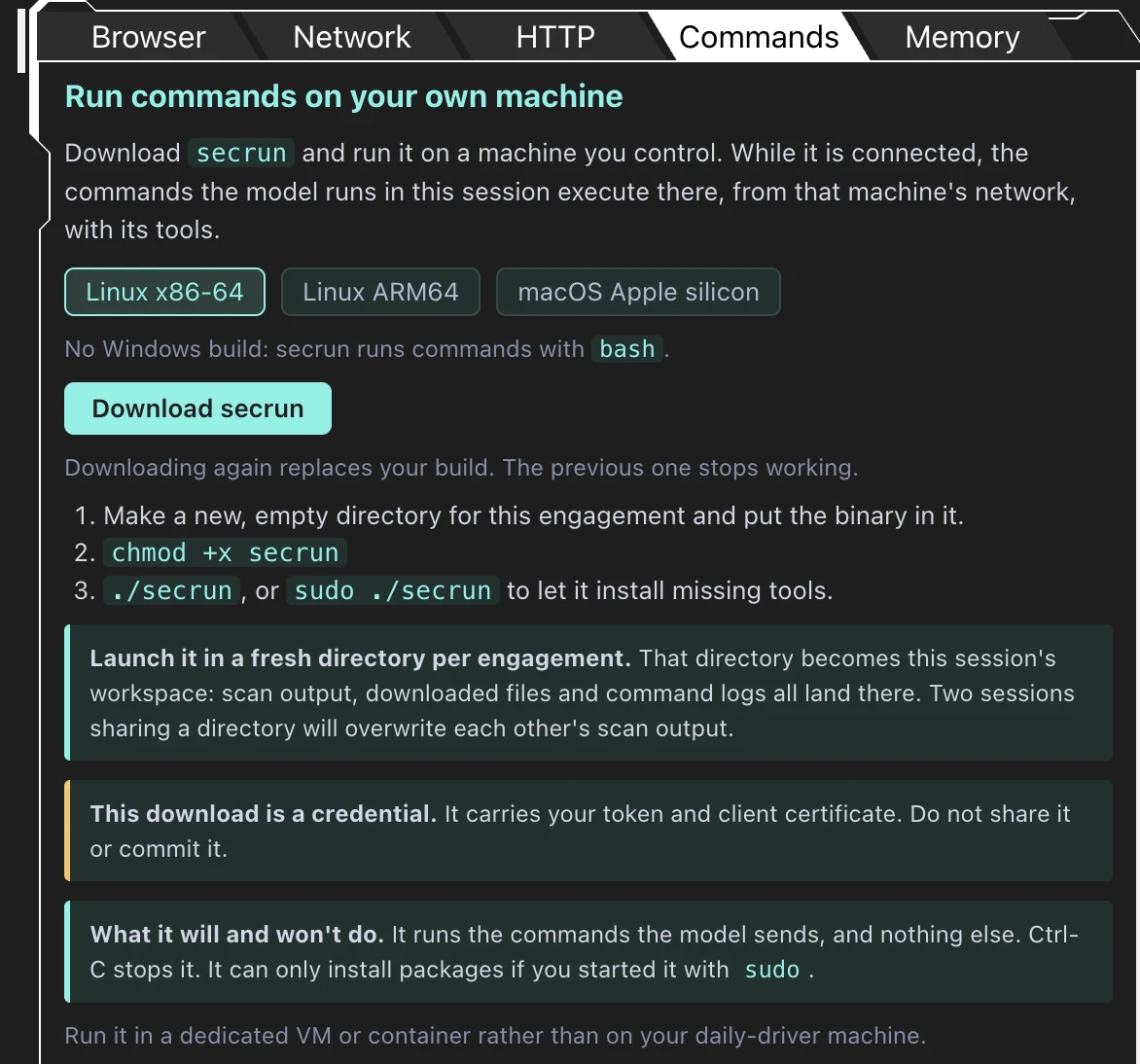 The Commands tab of a CTF session. Pick your platform, download, then follow the three steps.
How does Secrun work?
Secrun runs the commands the model sends from your session, and nothing else. Each one is executed with bash on your machine, and its output goes back to the session so the model can decide what to do next.
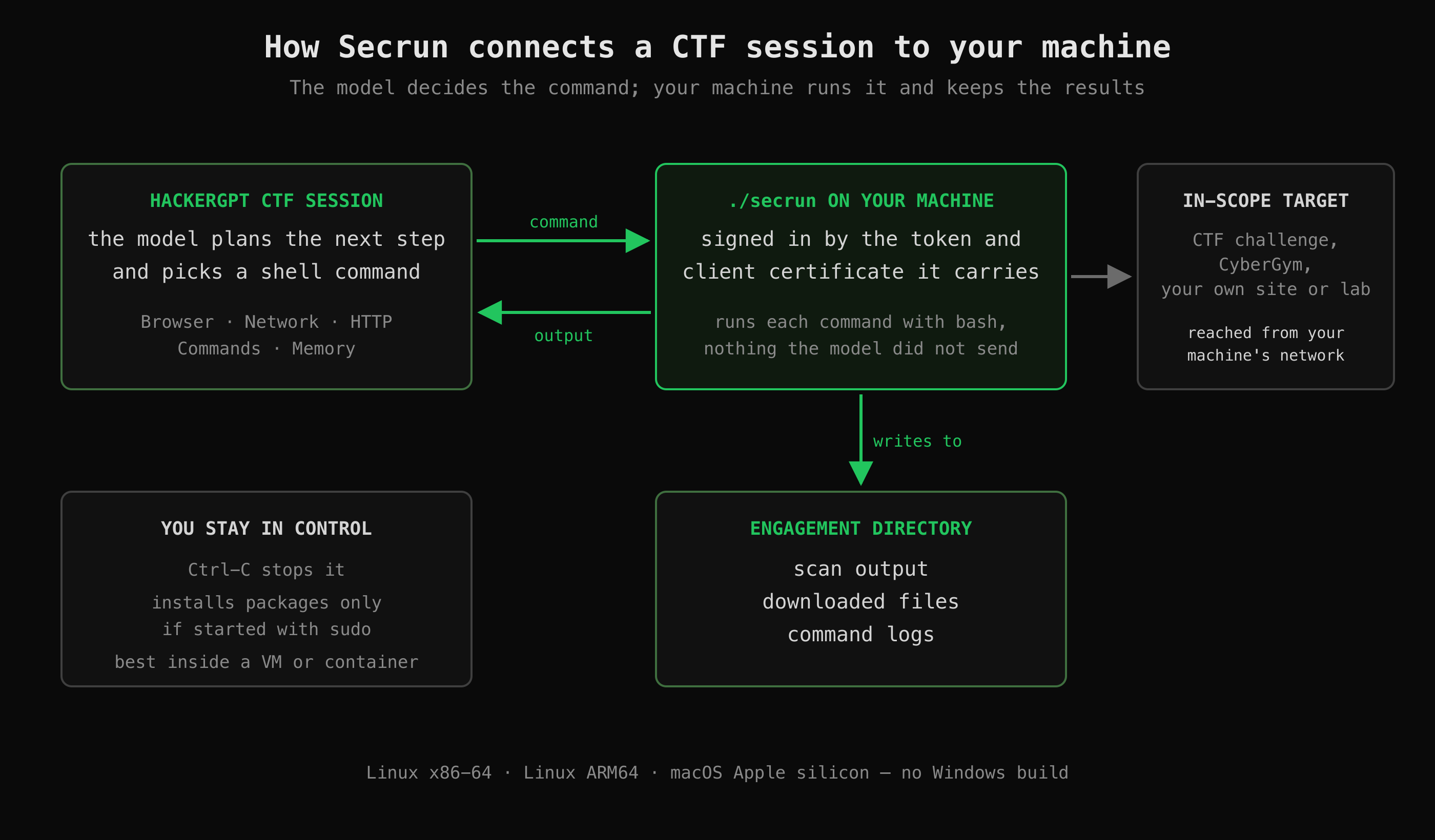 The model decides what to run; secrun runs exactly that on your machine and keeps every result in the engagement directory.
A few properties follow from that design, and they are worth knowing before you start it:
- It is tied to you. The binary you download carries your token and a client certificate. That is how the session knows the machine on the other end is yours. It also means the file is a credential: do not share it, upload it or commit it to a repository.
- One build at a time. Downloading Secrun again replaces your build, and the previous one stops working. If you think a copy has leaked, downloading a fresh one is how you cut it off.
- The folder is the workspace. The directory you start it in becomes the session's workspace. Two sessions sharing one directory overwrite each other's scan output, so use one fresh directory per engagement.
- You decide its privileges. Started as
./secrun, it runs commands as your user and cannot install packages. Started assudo ./secrun, it can install tools that are missing. Ctrl-C stops it at any time. - No Windows build. Secrun needs
bash, so there are builds for Linux x86-64, Linux ARM64 and macOS on Apple silicon only.
Which build do I need?
Pick the build that matches your operating system and CPU architecture. If you are not sure, uname -m prints the architecture (uname(1)):
uname -m
uname -m prints |
Operating system | Choose |
|---|---|---|
x86_64 |
Linux | Linux x86-64 |
aarch64 |
Linux | Linux ARM64 |
arm64 |
macOS | macOS Apple silicon |
An Intel Mac prints x86_64 under macOS, and there is no build for it. Run the Linux x86-64 build in a Linux virtual machine on it instead.
How do I install and run Secrun on Linux?
Download the build from the Commands tab, put it in an empty folder for this engagement, make it executable and start it. In a terminal:
# 1. a new, empty folder for this engagement
mkdir -p ~/ctf/my-event && cd ~/ctf/my-event

# 2. move the download into it (adjust the path if your browser saves elsewhere)
mv ~/Downloads/secrun .

# 3. make it executable, then start it
chmod +x secrun
./secrun   # or: sudo ./secrun for more rights (it can then install missing tools)
Replace my-event with a name for the engagement. The chmod +x step is needed because a file saved by a browser is not marked as executable (chmod(1)).
If you want the model to be able to install tools it finds missing, start it with sudo ./secrun instead. Do that only inside a VM or container you are prepared to throw away (see below).
Leave the terminal open. Secrun works while it is running and connected; Ctrl-C ends it.
How do I install and run Secrun on macOS?
On a Mac with Apple silicon the steps are the same as on Linux, plus one approval: macOS blocks a downloaded program that is not from the App Store or an identified developer until you allow it in Privacy & Security.
1. Put it in a folder and make it executable
Download the macOS Apple silicon build, then in Terminal:
mkdir -p ~/ctf/my-event && cd ~/ctf/my-event
mv ~/Downloads/secrun .
chmod +x secrun
./secrun   # or: sudo ./secrun for more rights (it can then install missing tools)
2. macOS blocks the first launch
The first ./secrun does not start. Instead macOS shows a dialog saying it could not verify secrun, and offers Move to Trash or Done. Click Done; do not move it to the Trash. This is Gatekeeper, which checks programs downloaded from the internet before they first run.
3. Approve it in Privacy & Security
- Open System Settings from the Apple menu and click Privacy & Security in the sidebar.
- Scroll down to the Security section. Under Allow applications from there is now a line saying that
secrunwas blocked. - Click Open Anyway next to it.
- Enter your login password (or use Touch ID) to confirm.
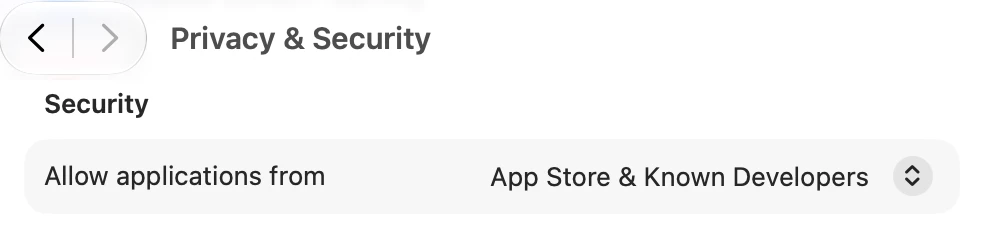 System Settings → Privacy & Security, scrolled down to Security. After a blocked launch, the message about secrun and its Open Anyway button appear here.
Apple's guide notes that the Open Anyway button is available for about an hour after the blocked launch (Open a Mac app from an unknown developer). If you do not see it, run ./secrun again and go straight back to the Security section.
4. Run it again
Back in Terminal, in the same folder:
./secrun # or: sudo ./secrun for more rights (it can then install missing tools)
If macOS asks once more whether to open it, choose Open Anyway. From now on it starts without the prompt. A new download is a new file, so after you download Secrun again you approve the new copy the same way.
Approve Secrun this way, for this one file. Do not lower Gatekeeper for every app to make it run: the per-app exception is all it needs.
How do I run Secrun safely?
Run it in a dedicated virtual machine or container, not on the laptop you use every day. Secrun runs the commands the model sends with your user's rights, and with sudo it can install software, so the machine it runs on should be one you can wipe.
- A fresh directory per engagement. It keeps each session's output apart and makes it obvious what was produced where.
- No
sudoon your daily machine. If a tool is missing there, install it yourself and run Secrun withoutsudo. - Nothing private in reach. Keep SSH keys, cloud credentials and personal files off the VM you run it in.
- Stop it when you stop. Ctrl-C when the session ends; there is no reason to leave it connected.
- Treat the binary like a password. Keep it out of shared folders and repositories, and download a new one if a copy may have leaked: the old one stops working.
A Linux VM is also the way to use Secrun from an Intel Mac or from Windows, which have no build of their own.
What does a session with Secrun look like?
You work in CTF Mode as usual, and the steps that need a terminal now run in one. A typical flow on a web challenge:
- Start a CTF session with the challenge description, as in our beginner's guide to web CTFs.
- Open the Commands tab, download Secrun and start it in a fresh folder, as above.
- Ask for a step that needs a shell, for example to list the open ports on the challenge host and save the result.
- The model sends the command; Secrun runs it on your machine; the model reads the real output and explains what it means and what to try next.
- When you are done, Ctrl-C. The folder holds every scan, download and command log from the session.
Every command Secrun runs appears in the Commands tab with its exit code, how long it took and how much output it produced. Here is part of that log from one of our CTF sessions:
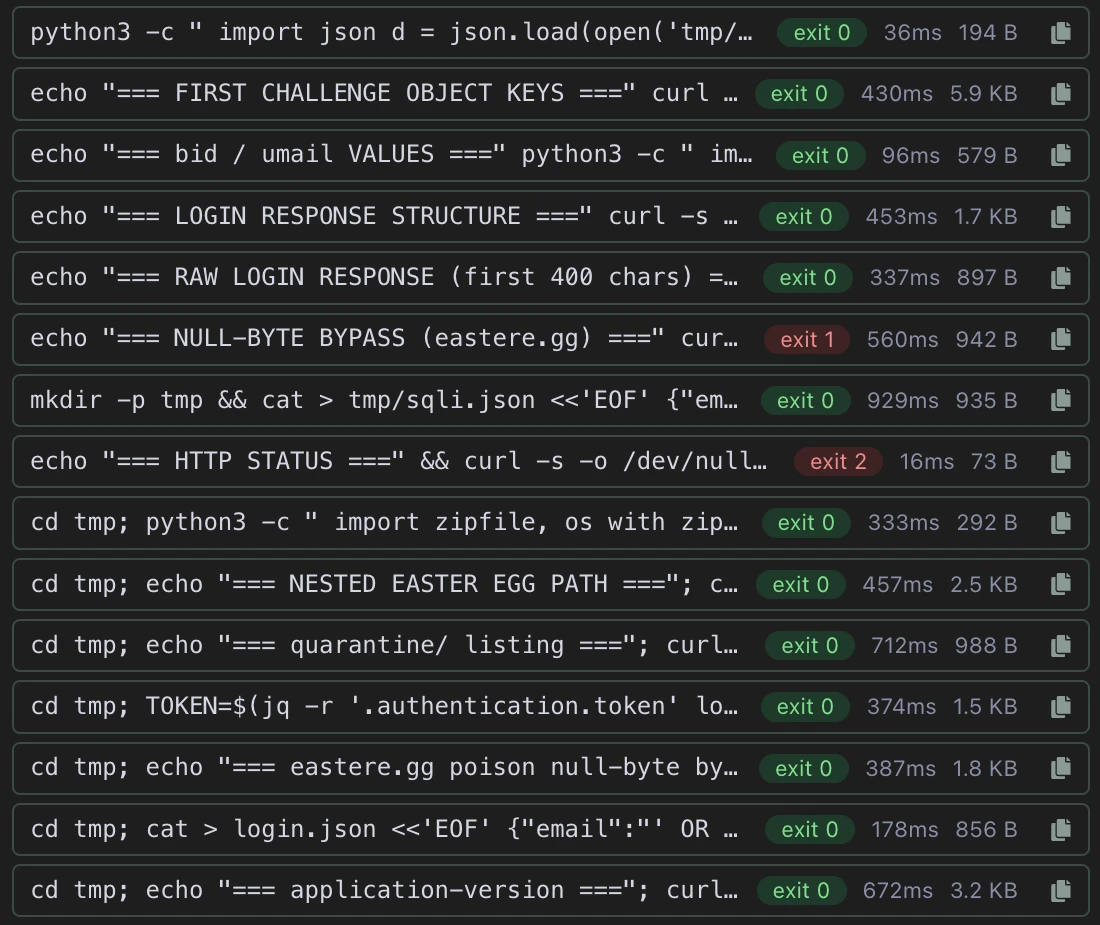 Part of the Commands log from a CTF session run through Secrun. Each line is one command the model sent, with its exit code, run time and output size; the red ones exited with an error.
A few things are visible in it:
- Ordinary tools. The model works with
curl,python3,jqand shell redirection, the same tools you would reach for, so you can read every step and rerun it yourself. - Labelled output. Many commands start with
echo "=== ... ===", so the output of each probe is easy to tell apart when you read it back. - Files in the workspace. Request bodies and responses are written to a
tmp/folder inside the engagement directory (tmp/sqli.json,login.json) and reused by later commands, which is why they are still there after the session. - Failures stay visible. Two commands exited with
1and2. The log keeps them next to the ones that worked, so you can see what was tried and did not work, not only the path that did.
The copy button on each line lets you take a command and run it again yourself.
Everything the model learns about the target stays in the Memory tab, and you can still steer it mid-run, as introduced in HackerGPT 0.5.7. Secrun adds the shell; the rest of the session works as before.
Key takeaways
- Choose the build with
uname -m: Linux x86-64, Linux ARM64 or macOS Apple silicon; there is no Windows or Intel Mac build. - Start Secrun in a new, empty folder for each engagement; that folder collects all scan output, downloads and logs.
- On macOS, approve it once in System Settings → Privacy & Security → Security → Open Anyway, within about an hour of the blocked launch.
- Run it in a VM or container, and use
sudo ./secrunonly on a machine you can throw away. - The downloaded binary is a credential: never share or commit it, and download a new one to revoke an old copy.
FAQ
What is Secrun in HackerGPT?
Secrun is a small binary you download from the Commands tab of a HackerGPT CTF session. While it runs on your machine, the commands the model chooses are executed there with bash, and their output goes back to the session. It runs only the commands the model sends and stops when you press Ctrl-C.
Why does macOS say it cannot open secrun?
macOS Gatekeeper blocks programs downloaded from the internet that are not from the App Store or an identified developer until you approve them. Open System Settings, go to Privacy & Security, scroll to the Security section and click Open Anyway next to the message about secrun, then confirm with your password. Run ./secrun again afterwards.
Is there a Windows or Intel Mac version of Secrun?
No. Secrun runs commands with bash, and the builds are Linux x86-64, Linux ARM64 and macOS on Apple silicon. On Windows or an Intel Mac, run the Linux build inside a Linux virtual machine.
Should I run Secrun with sudo?
Only if you want it to install missing tools, and only on a VM or container you can wipe. Without sudo it runs commands as your user and cannot install packages, which is the safer choice on any machine you also use for other work.
What happens if I download Secrun again?
The new download replaces your build and the previous copy stops working. That is also how to revoke a copy you think has leaked. On macOS the new file needs the Open Anyway approval once more.
Sources
- Apple: Open a Mac app from an unknown developer
- Apple: Safely open apps on your Mac
- Linux man-pages: uname(1)
- Linux man-pages: chmod(1)
- HackerGPT: CTF Mode
Try it in your next CTF session at hackergpt.app, or practise first on CyberGym.